.webp)
Google Ads is a powerful tool for driving online conversions, but what about all the valuable offline interactions?
You’re missing a big piece of the puzzle without tracking those offline actions.
Offline conversion tracking bridges the gap between online engagements and real-world outcomes, giving you a more accurate picture of your customer journey. It allows you to connect digital marketing efforts to in-person sales, phone calls, or consultations, helping you better allocate your ad spend and fine-tune your strategies.
If you’re serious about maximizing the return on your ad investment, understanding how to set up and optimize Google Ads offline conversion tracking is essential.
Offline conversion tracking is all about capturing actions that happen after someone interacts with your ad but completes the desired action later.
Think of it like this: A potential customer sees your Google ad, clicks on it, and submits a form requesting more information. The sales rep follows up with a phone call, and eventually, the customer makes a purchase. This purchase is an offline conversion.
The key difference between online and offline conversions is the touchpoint. While online conversions (like filling out a form or making an online purchase) happen directly on your website, offline conversions occur in the real world — a store visit, a completed call, or a signed contract.
These offline actions are just as critical for businesses, especially those with physical locations or sales teams. Capturing them can provide a better view of your return on investment (ROI).
Setting up offline conversion tracking in Google Ads might seem like a difficult talk, but it’s pretty straightforward if you follow the steps highlighted below.
Before you jump into the setup, there are a few things you need to do:
Once you’ve completed these actions, here’s what you need to do next:
Step 1: Start by logging into your Google Ads account.
Step 2: Navigate to the Goals tab in the sidebar, click on Conversions, and select Summary.
Step 3: Click the “+create conversion action" button, choose Import, and then select CRMs, files, or other data sources.
%252520(1200%252520x%252520600%252520px)%252520(1400%252520x%252520400%252520px).png)
Step 4: Choose the option to Track conversions from clicks (for actions initiated by clicks on your ads).
Step 5: If you haven’t already set up a data source (as directed in previous steps), do it before proceeding with your conversion action setup. Alternatively, you can connect the data source later.
%252520(1200%252520x%252520600%252520px)%252520(600%252520x%252520900%252520px)%252520(900%252520x%252520600%252520px).png)
Step 6: Periodically import your offline conversion data from your CRM or other systems into Google Ads. Automate this upload if possible.
Step 7: Ensure that each offline conversion can be linked back to a specific ad interaction, using unique identifiers like GCLID.
Step 8: Use the imported conversion data to analyze the effectiveness of your ads. Adjust your campaigns based on which ones are leading to valuable offline actions.
Step 9: Regularly check the conversion data for accuracy and make necessary adjustments to maintain effective tracking, especially if there are changes in your ad campaigns or CRM systems.
A range of tools can simplify offline conversion tracking. Popular CRMs like Salesforce and HubSpot offer built-in integrations with Google Ads, allowing for seamless data imports.
These platforms provide dashboards to visualize offline conversions alongside your ad performance, enabling you to make data-driven decisions faster.
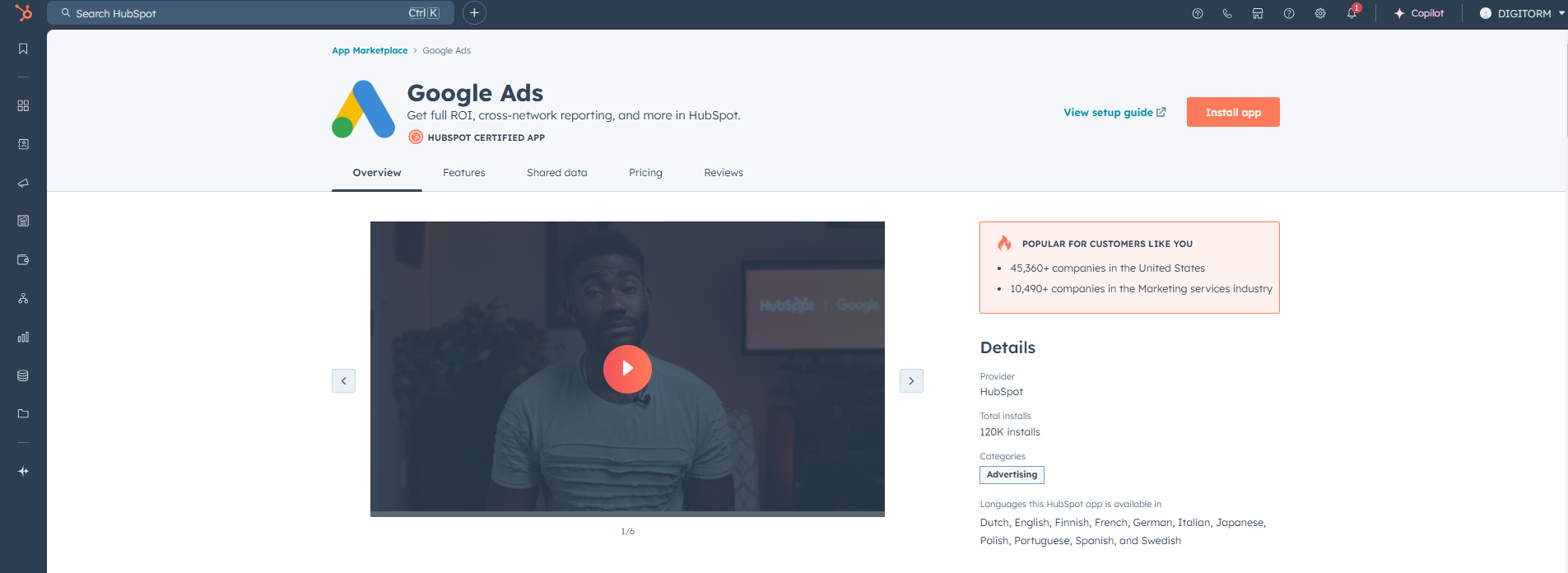
Third-party tools can also automate much of the process, reducing the chances of human error and ensuring that conversions are accurately tracked.
When selecting a platform, consider your business size, budget, and specific needs. For smaller businesses, tools like Zapier can automate data imports without a hefty investment.
1. How do I troubleshoot missing or inaccurate offline conversions in Google Ads?
Check the following:
2. Can I track offline conversions for Google Ads campaigns that use Smart Bidding?
Yes, you can track offline conversions for campaigns using Smart Bidding strategies such as Target CPA or Target ROAS. Google will automatically incorporate your offline conversion data into the bidding algorithms, allowing it to adjust bids based on both online and offline conversions. However, for optimal performance, ensure the data is properly uploaded and matched to the correct GCLID.
3. How long does it take for offline conversions to appear in Google Ads reports?
Offline conversion data typically takes between 6-24 hours to appear in Google Ads after you've uploaded the data. The time it takes can vary based on factors like data quality, upload frequency, and the volume of conversions you're processing. If the data isn't showing up after this period, verify that the upload was successful and check for any formatting issues or missing information.
To wrap up, setting up and tracking Google Ads offline conversion tracking is a powerful way to bridge the gap between online advertising and offline results. By integrating offline conversions, you gain a clearer understanding of how your digital marketing efforts translate into real-world actions, such as in-store purchases or phone inquiries.
Start by ensuring your Google Ads and CRM systems communicate effectively, then implement the necessary tracking tags and import your conversion data back into Google Ads. With the right setup, you'll be able to optimize your campaigns based on comprehensive data, ultimately driving better ROI and making more informed marketing decisions. Visit Digitorm to learn more!
Discover why mobile marketing should be your top priority in 2025. Learn about the latest trends, from in-app ads to 5G, and how Digitorm can help you stay ahead!








.jpeg)
